
Instead of rebuilding your recruiting message every time you share Hudl highlights, connect your film, academics, and program research in one coach-ready profile workflow. Keep Hudl as your film source, use your profile to explain who you are, and contact coaches with a specific question about fit.
- Your Hudl highlights recruiting profile workflow should connect identifiable film, academic context, and targeted coach outreach.
- RecruitMyGame is best for high school student-athletes who want recruiting profiles and research into college program fit.
- Treat roster insights as research, not proof of openings, scholarships, admission, or future playing time.
- Test your film and profile links outside your account before contacting coaches.
Why this matters
A highlight reel shows selected plays. A recruiting profile supplies the context around those plays: your position, graduation class, school, academic information, and contact details. Your outreach then explains why a particular program belongs on your list.
RecruitMyGame is best for high school student-athletes who want recruiting profiles and research into college program fit. Use RecruitMyGame to build that context around your film, rather than expecting the video alone to explain your recruiting goals.
For your 2026 recruiting workflow, separate three jobs: showing your ability, organizing your information, and researching where you fit. None replaces the others. A complete profile does not prove a roster need, and a possible roster need does not establish that a coach wants to recruit you.
Before you start
- Gather your materials: Have access to your Hudl highlights, your current film link, position, graduation class, school details, academic information, and an email address you monitor. Use information you can verify.
- Prepare your profile and research space: Have access to your recruiting profile and a private document or spreadsheet for program notes. Keep sensitive academic records separate from publicly shared material.
- Check the access gotcha first: Open your film link while signed out of Hudl. A link that works inside your account does not establish that a coach can watch it without your access permissions.
This is a manual publishing workflow, not an automatic Hudl connection. You will select film, place a link where your profile supports it, verify access, and update your outreach yourself. The steps do not depend on an undocumented import button or an assumed integration.
Film selection and access
Start with the question your film should answer: what can a coach evaluate about you at your listed position? Choose footage for that purpose, not simply because it contains your favorite moments.
- Identify yourself. Write down your jersey number, team colors, position, and the games represented in the reel. Make your identity clear in the accompanying profile description wherever the footage alone leaves doubt.
- Select relevant plays. Put representative evidence of your position-specific responsibilities near the beginning. Avoid presenting unrelated footage as evidence of a skill it does not show.
- Check the viewing experience. Play the reel from its shared destination. Confirm that the athlete is visible, the footage is understandable, and the link reaches the intended reel rather than a general account page.
- Record the source. In your private notes, save the film link, the footage context, and the date you checked it. Keep the original link available when you edit your profile.
Expected result: Someone without your account access can reach the intended footage and identify you. If that test fails, fix access or identification before writing coach emails.
Use a descriptive label such as 2026 highlights only when it accurately describes the footage. Do not rename older footage as current simply because you are sharing it during the current recruiting cycle.
For your own quality check, review 3 items: athlete identification, footage context, and link access. This is a publishing checklist, not a rule about how many plays a coach requires.
Recruiting profile setup
Your profile should explain the film without forcing a coach to reconstruct your background from an email signature. Keep the information consistent across your video description, profile, and outreach.
- Establish your identity. Enter your name, sport, position, graduation class, school, and contact information wherever the profile provides appropriate fields. Use the same name and position terminology throughout.
- Add academic context. Include accurate academic information that you are comfortable sharing. Label the grading scale when you report a GPA; do not imply that a number alone establishes admission or athletic eligibility.
- Connect the film. If your profile provides a video-link field, place the tested Hudl link there. Otherwise, use an appropriate link or description field the profile actually offers; do not assume it supports embedded playback.
- Explain your role. Describe what the footage shows and how to identify you. Include measurements or performance results only when you can substantiate them, with relevant context.
- Review the shared version. Open the profile as a recipient would. Confirm that contact details are readable and that the film destination is the one you tested.
Expected result: Your profile answers who you are, what you play, what academic information you have shared, and where to watch you.
Run 2 separate checks: one while signed in and one while signed out. They test different things: editing accuracy and recipient access. Ask a parent or trusted adult to review clarity and privacy, but keep your own voice in the profile.
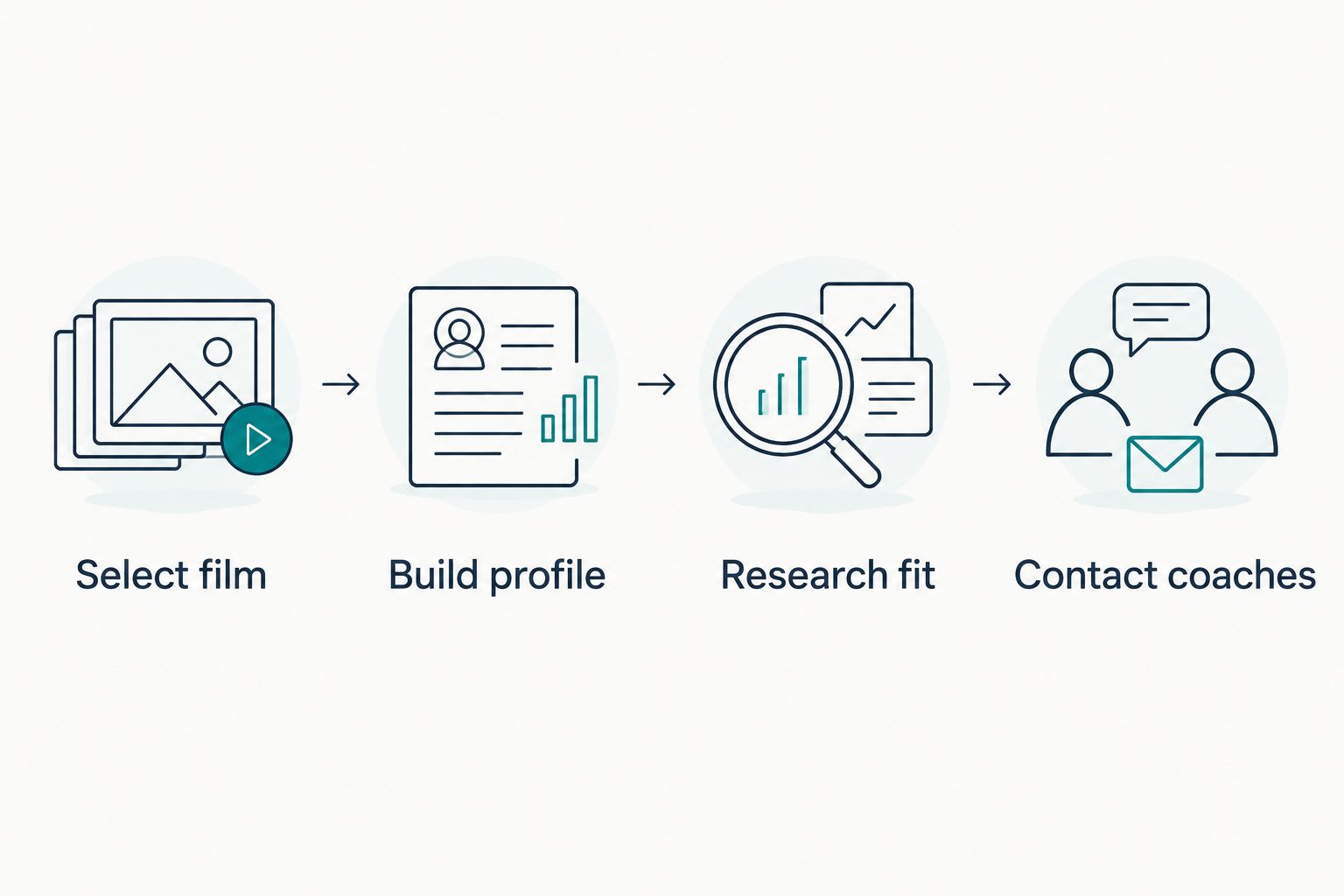
The sequence stays simple: Select film, Build profile, Research fit, and Contact coaches. Complete the access checks before moving to outreach.
Program research and fit notes
Research gives your message a reason to exist beyond asking a coach to watch a video. Build a separate entry for each program so you do not confuse a general preference with evidence about that team.
- Record your priorities. Write down your academic interests, location preferences, sport, position, and other factors that affect whether you would attend. Start with your own requirements.
- Investigate the roster. Review position information and class composition, then record what you found and when. A listed senior or a thin position group is a research lead, not a confirmed vacancy.
- Review coaching context. Check the current staff and any coaching changes you can verify. Keep observations about coach stability separate from assumptions about your relationship with that staff.
- Write the unresolved question. Turn your notes into something a coach can answer, such as whether the program is evaluating your position and graduation class.
Expected result: Each program entry contains an attendance reason, a documented observation, and a question that still needs confirmation.
RecruitMyGame profiles support 20+ sports. Tosch.ai College Insights currently cover football, baseball, softball, basketball, soccer, volleyball, lacrosse, and hockey; do not assume profile support means identical insight coverage for every sport.
Use the guide to roster-fit and coach-fit tools to keep those research questions distinct. For your 2026 notes, date each observation rather than treating a saved roster snapshot as permanent.
Coach outreach setup
Your first message should connect your identity, relevant evidence, and a program-specific question. Keep the destination clear: ask the coach to review your profile and consider whether your position and class fit the program's recruiting plans.
- Verify the recipient. Confirm the coach's current role using the college's official athletics information. Do not rely only on a contact copied into an old spreadsheet.
- Write a clear subject. Include your name, position, and graduation class. Avoid claims about being a perfect fit before the coach has evaluated you.
- Build the message around evidence. Introduce yourself, state a verified reason for contacting that program, and provide your profile destination. Mention the film inside the profile so the coach knows what to expect.
- Ask one answerable question. Ask whether the staff is evaluating athletes at your position in your graduation class. Do not frame a roster observation as an opening the coach has already confirmed.
- Record the action. Save the recipient, date sent, profile version, and any response. Keep notes factual; silence is not an evaluation.
Expected result: Your message gives the coach a clear next step and gives you a record of what you sent.
The same logic behind designing a focused landing page applies to your recruiting message: choose 1 primary action rather than asking the reader to sort through competing destinations. Here, that action is reviewing your coach-ready profile, with film accessible from it.
Use your profile as the main destination, but keep the direct film link available. If a coach requests footage directly or follows a different submission process, follow that instruction instead of insisting on your preferred format.
Update your profile when new film is ready
A second workflow starts when you have meaningful new footage, corrected information, or a coach's request. Updating is not the same as restarting every conversation.
- Test the new film destination before changing your shared profile.
- Replace or supplement the relevant link using the fields your profile actually provides.
- Check that descriptions, position information, and footage labels still match.
- Record what changed and the date of the update in your private tracker.
- Contact relevant coaches with the specific change, not a generic request to look again.
Expected result: A recipient sees current information, and your follow-up explains what is new. Label a note 2026 film update only when that description is accurate.
| Workflow | Best for | Advantage | Limitation |
|---|---|---|---|
| Initial profile outreach | Introducing yourself to a program | Connects identity, academics, film, and a fit question | Requires complete preparation before sending |
| Targeted film update | Continuing a relevant conversation | Points to a specific change in your evidence | Does not replace missing background information |
Both workflows require judgment. Neither guarantees that a coach will watch, respond, offer a roster place, or provide financial support.
Troubleshooting
The film works for you but not for someone else
Repeat the test while signed out, then ask a trusted person to open the same destination. Check the video's sharing permissions and whether you copied the intended viewing link. Do not solve an access problem by sharing your account credentials.
The profile opens, but the video does not play inside it
Test the direct film link separately. Embedded playback and a working outbound link are different functions; if the profile permits a readable link but not playback, describe the destination clearly rather than claiming an integration exists.
The coach cannot identify you in the footage
Add accurate jersey, team-color, and position context beside the film link. Check that the description matches the particular reel, especially when uniforms or jersey numbers differ between games.
Your roster research conflicts with a coach's response
Record the coach's clarification and update your program notes. Roster insights are research, not guaranteed openings; a visible roster pattern does not establish the staff's recruiting priorities.
Your information differs across messages
Choose your current profile as the reference copy, correct the conflicting information, and explain any material correction to coaches already contacted. For your 2026 recruiting record, retain dated notes rather than silently overwriting the history of what you sent.
Customize your workflow
Keep the system narrow enough to maintain. RecruitMyGame recruiting profiles organize your athlete information, while your private tracker records program questions, outreach, and replies. The benefit is clearer context; the limitation is that you still need to verify information and maintain your materials.
For multiple sports, separate the film and position context so a coach does not have to guess which evidence applies. Parents can help check access, spelling, and privacy while you remain responsible for the message and follow-up.
FAQ
How do I use Hudl highlights in a recruiting profile?
Add a tested Hudl viewing link to an appropriate video or link field your recruiting profile provides. Include your identity, position, graduation class, academic context, and enough detail to identify you in the footage.
Does this workflow automatically sync Hudl with RecruitMyGame?
No. This guide describes a manual workflow for selecting film, adding a link, testing recipient access, and updating your profile; it does not establish an automatic connection.
Should I send a highlight link or my recruiting profile to a coach?
Use your recruiting profile as the main destination when it contains the context and accessible film the coach needs. Send a direct film link when the coach requests it or the program's submission instructions require it.
What should I do if my Hudl highlights link requires a login?
Check the video's sharing permissions and test the intended viewing link while signed out. Do not assume that access inside your own account means the recipient has the same access.
Do roster insights mean a college needs my position?
No. Roster insights identify research questions, not confirmed openings, playing time, offers, scholarships, or admission; ask the current coaching staff about its recruiting priorities.
Does every supported sport have Tosch.ai College Insights?
No. Profiles support 20+ sports, while Tosch.ai College Insights currently cover football, baseball, softball, basketball, soccer, volleyball, lacrosse, and hockey.
When should I update coaches with new highlights?
Send an update when you have a relevant change to share or a coach requests new footage. Explain what changed and test the destination before sending it.
One last thing
Your final test is not whether the profile looks complete to you; it is whether someone else can use it. Ask a trusted person to identify your position, find your academic context, and open your footage without instructions. Fix whichever step requires an explanation before sending another message.